Network Tools
Ping Tools: Network Utility
Official mobile application
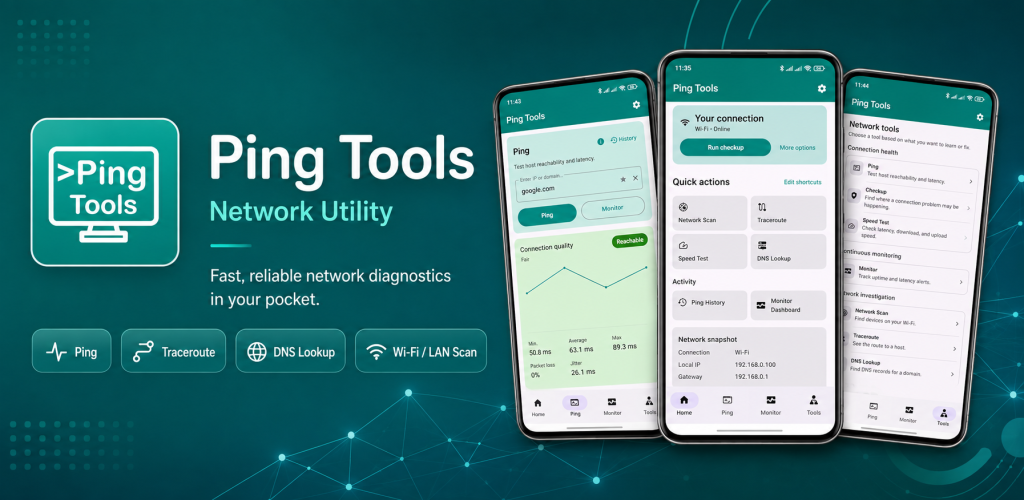
Ping Tools is an Android network diagnostics utility for checking connectivity, analyzing WiFi networks and troubleshooting common network problems. Use it to ping IP addresses and domains, discover devices on your WiFi or LAN, analyze wireless channels and signal strength, test internet speed, monitor hosts, trace network routes, inspect DNS records and scan reachable TCP ports.
Free
Google Play snapshot
Public store data- Rating
- 5.0
- Downloads
- 5K+
- Updated
- Aug 20, 2026
43 ratings
Public range
Store listing
Inside the app
App screenshots
Swipe or open a larger view
What is Ping Tools?
Ping Tools is an Android network utility designed to bring common connectivity and troubleshooting tools into one app. It can help you check whether an IP address, website, router or server is reachable, inspect your wireless environment, discover devices on a local network and investigate network performance without switching between multiple utilities.
Diagnose Network and Internet Problems
When a connection feels slow, unstable or unreachable, Ping Tools provides several ways to investigate the problem. You can measure latency and packet loss, trace the route to a remote host, inspect DNS information, check reachable ports and test internet performance. Saved diagnostic history also makes it easier to review previous results and compare network behavior over time.
Analyze WiFi and Local Networks
Ping Tools can also help you understand your local WiFi environment. Analyze nearby wireless networks, compare signal strength, review channel usage and discover devices connected to your WiFi or LAN. Router placement and signal testing tools can help you evaluate coverage in different areas and identify locations with weaker wireless performance.
Network Diagnostic Tools
Ping IP & Domain
Ping an IP address, domain, website, router or server to check reachability, measure response time and identify packet loss or latency issues.
Traceroute
Trace the network route between your Android device and a remote host to inspect the path network traffic takes.
DNS Lookup
Look up available DNS information for domains when checking name resolution or investigating DNS-related connectivity problems.
Port Scanner
Check TCP ports on a host or device to identify reachable ports and troubleshoot network services on systems you manage or are authorized to test.
Internet Speed Test
Test internet connection performance and review available speed and latency information when investigating a slow or unstable connection.
Host Monitor
Monitor a website, server, domain or IP address to check availability, latency and recent host status from your Android device.
Network Checkup
Run a quick network check when your connection does not feel right and access relevant diagnostics for WiFi, latency, DNS and connectivity issues.
Network Snapshot
View useful information about your current network connection, including available local IP and connection details in one place.
WiFi and Local Network Tools
WiFi Analyzer
Analyze nearby WiFi networks, compare signal strength and better understand the wireless environment around your Android device.
WiFi Channel Analysis
Review WiFi channels and channel overlap across supported frequency bands to identify congestion in nearby wireless networks.
Signal Strength Monitor
Track WiFi signal strength in dBm and observe how wireless reception changes as you move between different locations.
Router Placement Test
Take WiFi signal samples in different locations to help evaluate router or access point placement and wireless coverage.
Network Scanner
Scan your local network to discover devices currently visible on the same WiFi or LAN connection.
Connected Device Details
Review available information about discovered network devices, including IP addresses and other identification details when available.
Trusted Device Management
Mark familiar devices as trusted and make it easier to distinguish recognized devices from devices that may need your attention.
Diagnostic History
Review saved results from supported tools such as ping, network scans, monitoring, speed tests and DNS lookups.
How to Diagnose a Network with Ping Tools
- 1
Check Your Current Connection
Open Ping Tools and review your current network information or run Network Checkup to get an overview of the connection.
- 2
Ping an IP Address or Domain
Enter an IP address, domain or server and run a ping test to check reachability, response time and packet loss.
- 3
Analyze WiFi or Scan the Network
Use WiFi Analyzer to inspect wireless conditions or run a network scan to discover devices connected to your local network.
- 4
Run Additional Diagnostics
Use tools such as traceroute, DNS lookup, port scanning or internet speed testing when you need more information about a network problem.
- 5
Review Your Results
Check the available results and saved diagnostic history to compare previous tests and identify changes in network performance.
Use Network Tools Responsibly
Network scanning and port scanning should only be used on networks, devices and systems you own or have permission to test. Results can also vary depending on router settings, Android restrictions, firewalls, device privacy features and the current network environment.
Frequently asked questions
What is Ping Tools used for?
Ping Tools is an Android network diagnostics app for checking connectivity, measuring latency and packet loss, analyzing WiFi, discovering local network devices, testing internet performance and using tools such as DNS lookup, traceroute and port scanning.
Can Ping Tools ping an IP address or domain?
Yes. You can ping supported IP addresses and domains to check whether they are reachable and review information such as response time, latency and packet loss.
Can I see devices connected to my WiFi?
Ping Tools includes a network scanner that can discover devices visible on your current WiFi or LAN. The information available for each device depends on the network and device configuration.
Does Ping Tools include a WiFi analyzer?
Yes. The WiFi Analyzer can display nearby wireless networks, signal strength, supported frequency bands, channel information and channel overlap to help you understand your WiFi environment.
Can Ping Tools check packet loss?
Yes. Ping tests can help identify packet loss and measure network response times when checking connectivity to a supported IP address or domain.
Can Ping Tools scan network ports?
Yes. Ping Tools includes a TCP port scanner for checking reachable ports on hosts or devices that you own or are authorized to test.
Does Ping Tools include traceroute and DNS lookup?
Yes. Traceroute can help inspect the path to a remote host, while DNS Lookup can retrieve available DNS information for a domain.
Can Ping Tools monitor a server or website?
Yes. Host Monitor can be used to check the availability and latency of supported websites, servers, domains and IP addresses and review recent monitoring results.
Ready to try Ping Tools: Network Utility?
Use the official store link to view the latest release and install securely.
Open official store ↗