Alarm & Wake-Up

WakeTag
Official mobile application
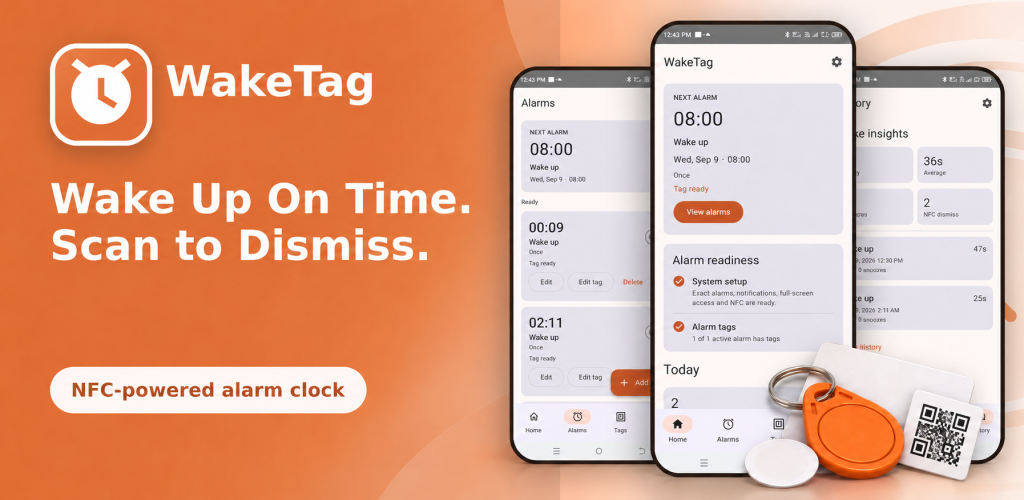
WakeTag is an Android alarm clock designed to make alarm dismissal more intentional. Create wake-up alarms and assign a compatible NFC tag or QR code that must be scanned as part of the dismissal workflow. Place the tag away from your bed, manage multiple alarms, check alarm readiness and review wake-up history and response times from one app.
Google Play snapshot
Not available yet- Rating
- —
- Downloads
- —
- Updated
- —
Not available yet
Not available yet
Not available yet
What is WakeTag?
WakeTag is an Android alarm clock that uses physical tag-based dismissal to make waking up more deliberate. Instead of relying only on a simple on-screen dismissal, you can connect an alarm to a compatible NFC tag or QR code and place that tag somewhere away from your bed. When the alarm rings, completing the configured tag scan becomes part of the wake-up routine.
Scan an NFC or QR Tag to Dismiss an Alarm
Assign a compatible NFC tag or QR code to a wake-up alarm and place it at a location that fits your morning routine, such as near a desk or other morning essentials. When the alarm activates, WakeTag uses the configured tag-based dismissal workflow so stopping the alarm requires a more intentional physical action than simply tapping a button beside the bed.
Manage Alarms and Review Wake-Up Activity
WakeTag lets you create and manage multiple alarms, enable or disable individual schedules, edit assigned dismissal tags and review the next scheduled alarm. Alarm readiness checks help confirm important Android settings before relying on a wake-up alarm, while History and Insights provide information about completed alarms, dismissal times and recent wake-up activity.
Alarm & Tag Dismissal Features
NFC Alarm Dismissal
Assign a compatible NFC tag or card to an alarm and use the registered tag as part of the supported alarm-dismissal workflow.
QR Tag Dismissal
Register a supported QR code or barcode as an alternative physical tag for configured alarm-dismissal workflows.
Multiple Alarm Management
Create and manage multiple wake-up alarms with separate schedules and configurations for different days or routines.
Individual Tag Assignment
Connect separate NFC or QR tags to supported alarms so different wake-up routines can use different dismissal tags.
Alarm Readiness Check
Review whether important alarm settings, notifications, full-screen alarm access and required tag functionality are ready before relying on an alarm.
Next Alarm Overview
See your next scheduled wake-up time and quickly review the alarm that is currently prepared to run.
Alarm History
Review recent completed alarms and response information to see how previous wake-up sessions were handled.
Wake-Up Insights
Review supported statistics such as completed alarms, average dismissal time, dismissal methods and recent alarm activity.
Review supported statistics such as completed alarms, average dismissal time, dismissal methods and recent alarm activity.
Place a Tag Away from Your Bed
Keep a compatible NFC or QR tag at another suitable location so completing the dismissal workflow requires moving away from where you sleep.
Create a Weekday Alarm
Prepare a recurring wake-up alarm for school, work or another regular morning schedule.
Use Different Tags for Different Alarms
Assign separate supported tags when different alarms should use different physical dismissal locations or routines.
Keep a Backup QR Tag
Register a supported QR code or barcode when you want an additional tag-based dismissal option alongside NFC.
Check Alarm Readiness Before Bed
Review WakeTag's readiness information before relying on a scheduled alarm so required Android alarm settings can be checked in advance.
Review Dismissal Times
Use History and Insights to review how long supported alarm dismissals took and compare recent wake-up activity.
Build a Consistent Morning Routine
Use recurring alarms and a consistent physical tag location as part of a repeatable wake-up routine.
Track Recent Alarm Activity
Review recent completed alarms and supported wake-up information when you want a clearer record of your alarm routine.
Review recent completed alarms and supported wake-up information when you want a clearer record of your alarm routine.
- 1
Create an Alarm
Open WakeTag and add a new alarm for the wake-up time and schedule you want to use.
- 2
Choose a Dismissal Tag
Assign a compatible NFC tag or supported QR tag to the alarm according to the dismissal method you want to use.
- 3
Place the Tag Away from Your Bed
Keep the registered tag at a suitable location that fits the physical wake-up routine you want to create.
- 4
Check Alarm Readiness
Review WakeTag's readiness information and confirm that required Android alarm, notification and tag-related settings are prepared.
- 5
Let the Alarm Run
When the scheduled alarm activates, complete the configured NFC or QR tag scan to use the supported dismissal workflow.
- 6
Review Wake-Up Activity
Open History or Insights after completed alarms to review supported dismissal times and recent wake-up information.
Open History or Insights after completed alarms to review supported dismissal times and recent wake-up information.
Alarm and Tag Requirements
Frequently asked questions
What is WakeTag?
WakeTag is an Android alarm clock that uses supported NFC or QR tag scanning as part of the alarm-dismissal workflow and includes multiple alarms, readiness checks, history and wake-up insights.
How does WakeTag dismiss an alarm with NFC?
Assign a compatible NFC tag or card to an alarm. When the alarm activates, scan the registered NFC tag as part of the configured dismissal workflow.
Does WakeTag support QR codes?
Yes. The current app includes QR Tag management in addition to NFC Tags, allowing supported QR codes or barcodes to be registered for configured alarm workflows.
Does WakeTag rewrite my NFC tag?
No. The current NFC workflow identifies the assigned compatible tag without needing to rewrite its existing stored content.
Can I use different tags for different alarms?
Yes. WakeTag supports individual tag assignment so supported alarms can use their own configured NFC or QR dismissal tags.
Can I create multiple alarms in WakeTag?
Yes. You can add, edit, enable, disable and delete multiple alarms and review the next scheduled alarm from the app.
What does Alarm Readiness check?
Alarm Readiness helps you review supported requirements such as exact-alarm access, notifications, full-screen alarm behavior and configured tag readiness before relying on a scheduled alarm.
Does WakeTag keep wake-up history?
Yes. WakeTag provides supported alarm history and wake-up insights such as completed alarms, average dismissal time, dismissal activity and recent alarm responses.
Ready to try WakeTag?
Use the official store link to view the latest release and install securely.
Open official store ↗